ETS5 & ETS6 · AI assistants · Integrated MCP server
Understand, extend and check your KNX smart home or a customer project with AI. KNX-MCP connects your assistant to the enabled, open ETS project – without exporting it or maintaining a separate copy.
New in 1.2.1.0: program files signed through Microsoft for Windows 11 with Smart App Control enabled. Plus more precise group addresses, bus diagnostics and broader DALI analysis.
Currently available free of charge in the KNX Online Shop.
License count as of 25 November 2026 (since 7 October 2026). Based on free MyKNX license orders, not active installations or unique users.
Product overview
What is KNX-MCP, and what can it do in ETS?
KNX-MCP is an ETS App with an integrated Model Context Protocol (MCP) server. It connects AI assistants to the current, enabled KNX project in ETS5 or ETS6. Ask questions and prepare changes instead of navigating the entire project on your own.
Inspect and edit the actual ETS project
Understand rooms, devices, group addresses and settings in the open ETS project. Review links, identify missing addresses and carry out planned changes subject to your permissions.
Claude Code, OpenAI Codex, GitHub Copilot and Microsoft Scout can connect directly with suitable Streamable HTTP support. Claude Desktop for Windows has a separate extension; ChatGPT and Microsoft Copilot use a suitable MCP gateway.
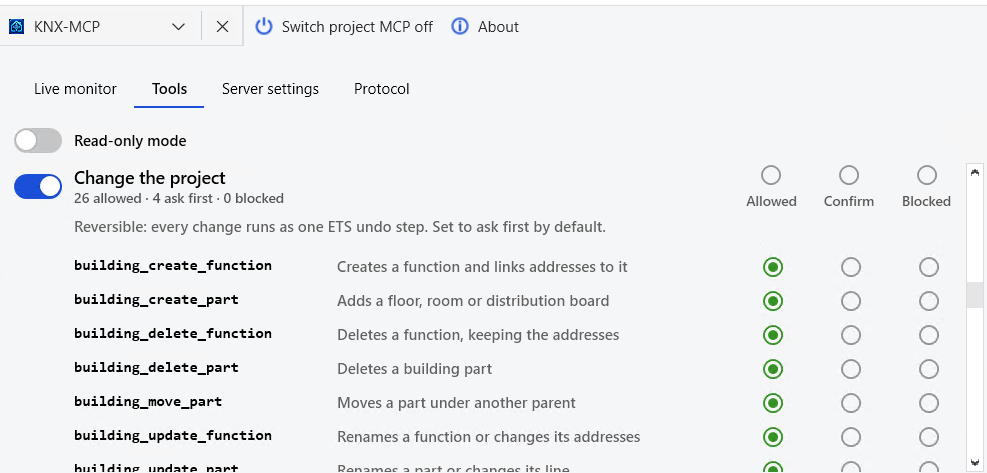
Each tool can be allowed, require confirmation or be blocked. Read-only mode prevents project changes and bus writes; device programming is blocked by default. ETS undo applies where supported, not to physical bus actions.
The endpoint is local-only by default. Optional HTTPS protects the configured connection in a trusted network. Release 3 signs the ETS App program files through Microsoft for Windows 11 Smart App Control.
Whether it is your own smart home or a customer installation, ask questions about the project in natural language. With a configured MCP gateway, ChatGPT can also work with ETS – by typing, or by voice when the client and voice mode support connected tools.
ChatGPT · MCP · KNX-MCP
“Which devices belong to my living room lighting?
“What is the current temperature in the living room?
“Check why the hallway presence detector is not switching as expected.
Example requests, not a live connection. Reading bus values requires a working KNX connection and suitable group addresses.
Start in read-only mode. Ask the assistant to explain devices, rooms and functions before changing anything.
02
Prepare a change
Describe the goal, such as creating switching or status addresses. Review the proposal and its implications in ETS.
03
Approve deliberately
Enable only the tools you need. Confirm changes and check the result afterwards. Involve qualified professionals for electrical work and safety-critical functions.
Requires a suitable ETS license, access to your own or authorized project, and a compatible AI client. KNX-MCP does not replace ETS or electrical expertise.
KNX-MCP 1.2.1.0 · Release 3
Release 3: signed for Windows. More precise in ETS.
KNX-MCP 1.2.1.0 improves everyday work in ETS, with 99 tools, optional HTTPS and your existing permissions.
Microsoft signing for Smart App Control
The program files are digitally signed through Microsoft. Windows can verify their publisher and integrity for use on Windows 11 with Smart App Control enabled.
Actual group-address numbers, gapless address blocks on request and clearer bus diagnostics. DALI analysis now also reads supported gateways from Schneider Electric, MDT and GVS.
The KNX-MCP extension 1.0.5 connects Claude App / Claude Desktop on Windows to ETS using exported HTTPS profiles. Claude Code and OpenAI Codex connect directly with suitable MCP support.
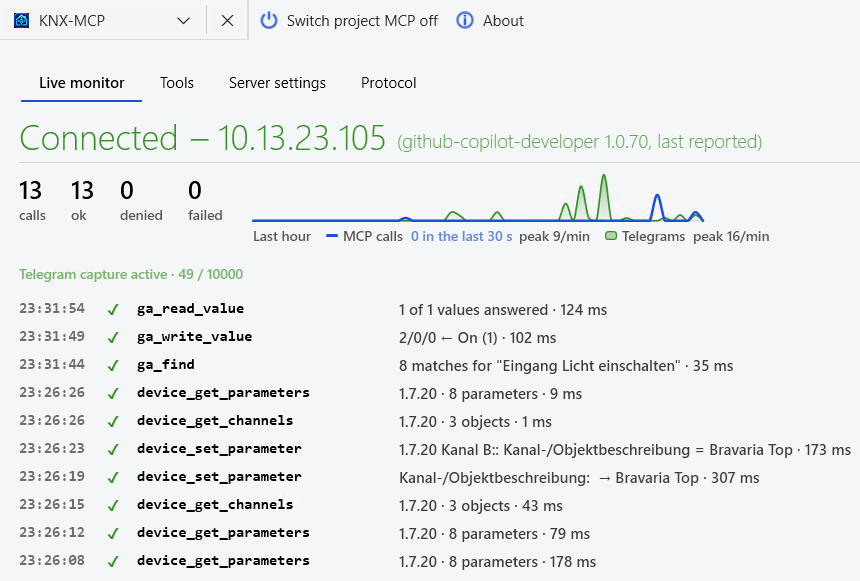
The live monitor shows connected clients, tool calls and telegram activity. Permissions can be set per tool to allowed, confirmation required or blocked.
↗ Enlarge screenshotExample of the ETS live monitor. Some controls may differ in the current version.
MCP architecture
From a question to an action – right inside ETS.
An AI assistant uses KNX-MCP in the open, enabled ETS project. It can connect directly or through an MCP gateway that brings multiple sites together. Choosing a project or accessing the bus is intentional, not an automatic fallback to another site. ETS5 and ETS6 can run in parallel on the same Windows computer or server, or on different systems and sites. Each ETS instance exposes its own KNX-MCP endpoint.
KNX-MCP / ETS
Interactive illustration · not a live connection
Ready · step through or play
Connection path
Target endpoint
For a direct connection, only the selected endpoint is shown.
AI assistant
ChatGPT · compatible AI assistants
MCP
MCP gateway
e.g. Obot
One connection · selected tools
HTTPS optional
Garching · company headquarters
ETS5Selected target
Site A · Garching office
KNX-MCPProject and tool permissions
Open ETS projectKNX bus · for bus queries
ETS6Not selected
Site B · Garching office
KNX-MCPProject and tool permissions
Open ETS projectKNX bus · for bus queries
ETS5 and ETS6 can also run on the same computer or server.
ETS6Not selected
Site C · Lab
KNX-MCPProject and tool permissions
Open ETS projectKNX bus · for bus queries
Example workflow
Choose a typical workflow. The animation illustrates tool calls and responses. It draws on observed live-monitor workflows but uses example data only.
Inspect project
01
Connect
ets_list_projects
The assistant discovers enabled projects at the selected endpoint.
02
Read the project
ga_get_list
Group addresses and datapoint types in the chosen project are read.
03
Return results
ga_get_list
The project data is returned to the assistant.
04
Review
Analysis · read only
Example: lighting group addresses are summarised. No changes were made.
Edit group addresses
01
Connect
ets_list_projects
The assistant selects the correct enabled project.
02
Check first
ga_get_list
Existing group addresses and occupied numbers are checked before editing.
03
Request a change
ga_create
In this example, switching and status addresses are requested for a room.
04
Check permission
Approval in the ETS panel
In this example the tool is set to Confirmation required. No change takes place without approval.
05
Execute
ga_create
After simulated approval, the illustration shows a successful change supported by ETS.
06
Verify
ga_get_list · project_get_undo_list
The assistant reads again and inspects the undo history. Supported project edits can be reversed using ETS Undo.
Optional · ETS Undo
project_undo
The recording also shows ga_renumber and project_undo. Supported project changes can be reversed with the appropriate permission; physical bus actions cannot. After verification, this example change can be reversed visually.
Read a bus value
01
Connect
ets_list_projects
An enabled project at the correct site is selected.
02
Find the address
ga_find
The group address for the temperature value is located in the project.
03
Read the bus
ga_read_value
With an available bus connection, the tool queries the value; no real telegram is sent by this example.
04
Response
ga_read_value
Example response: office 22.4 °C. The actual value depends on the device and an available bus connection.
Ready · step through or play
No data from your installation. No actual MCP request or bus access. This is an illustration, not a replica of the ETS interface.
Direct connection
A client with suitable Streamable HTTP support can reach the KNX-MCP endpoint directly. Claude Desktop on Windows, for example, uses the separate KNX-MCP extension. This is the short connection path for a local computer or a suitably protected network.
A gateway such as Obot can combine reachable KNX-MCP endpoints from different ETS installations and make selected tools available through one connection. Choose the site and project explicitly. Connection settings, access keys and KNX-MCP permissions remain separate per endpoint or project. The gateway complements these controls; it does not replace them. ETS5 and ETS6 can run in parallel on one Windows computer or server or on separate machines. Configure distinct ports on a shared host and keep the endpoints, access keys and project permissions separate.
A compatible ChatGPT account can, for example, ask questions about the selected enabled project – by text or in a voice mode that supports connected tools. Actual capabilities depend on the client, plan and permissions. Required approvals still apply.
The endpoint is local-only by default (127.0.0.1). Network access requires explicit configuration, an access key and appropriate safeguards; enable HTTPS for trusted intranet connections. Technical architecture and ETS SDK · View the practical example
In practice
Where KNX-MCP pays off.
From understanding an unfamiliar project to commissioning and troubleshooting.
⌘
Understand existing projects
List currently open ETS projects, then inspect topology, rooms, devices, group addresses and links — without exports or outdated copies.
✓
Check before handover
Collect missing datapoint types, unlinked objects, unusual sender/receiver structures and other findings.
+
Extend the project
Add rooms, functions and group addresses following the existing scheme and link communication objects.
↯
Commission & troubleshoot
Listen to bus traffic, read current values, send values intentionally, identify devices and scan lines.
☑
Keep track of open items
Read, add and complete ETS to-do items and evaluate them together with project history.
≡
Document
Compile room, device and address information from the actual project for maintenance and acceptance.
Ask naturally
Ask KNX-MCP about your ETS projects.
Discover open projects, search group addresses by room or function, check devices and request controlled changes using natural language.
MCP client · KNX-MCP
Which projects are currently open in ETS? Please also list information about each project.
Which hall lighting group addresses have more than one sender?
Create switch, dimming value and status addresses for meeting rooms 2.01 to 2.06.
What is the current temperature in the server room?
Control
The AI can only do what you allow.
Once project MCP is started, read operations are allowed by default. Changes, telegrams and device programming are controlled separately.
↗ Enlarge screenshotTool permissions: read-only mode, project changes and the three states allowed, confirm and blocked.
Data
Your project data stays under your control.
KNX-MCP does not operate a cloud service your project data passes through. The app works inside ETS; you decide which assistant processes the data. A locally hosted model is possible as well.
⌂
No KNX-MCP cloud server
The app does not send project data to a Gerald Docenko server. The local log remains on your computer.
◈
Customer data is restricted
Project and contract numbers are only returned on explicit request; security keys are never returned.
∞
Several projects & assistants
ETS5 and ETS6 can expose several open projects through one endpoint; several MCP clients can be connected at the same time.
Community & Support
Questions, bugs and practical experience belong in one public place.
The KNX-MCP Community repository brings together discussions, bug reports, ideas, setup examples and release notes. Please never publish project files, credentials or customer data there.
?
Questions & discussions
Ask questions, discuss solutions and share useful workflows with other users.
For ETS5 5.7+ and ETS6: 99 MCP tools, optional HTTPS and program files signed through Microsoft. Update from 1.2.0.4 while keeping settings, permissions and client configurations.